






Gmail confidential mode promises quite a lot from a single lock icon: expiring messages, blocked forwarding, revocable access. What it does not promise, despite how it is often described, is encryption. This guide covers exactly how to turn on Gmail confidential mode, what every setting actually does and the specific limitations Google’s own documentation admits but most casual guides gloss over.
Table of Contents
What Is Gmail Confidential Mode
Gmail confidential mode is a built-in feature that adds access controls to an email, letting the sender set an expiration date, require a passcode and revoke access after sending. Rather than delivering the message body directly to a recipient’s inbox, Gmail confidential mode stores the content on Google’s own servers and sends a link instead, which is what lets the sender pull access back even after the message has technically been sent.
Google launched Gmail confidential mode back in 2019. It remains available at no extra cost to every Gmail and Google Workspace account. Recipients using Gmail see the confidential message open directly inside the normal Gmail interface, while recipients on other email providers see a link that opens the content in a browser window instead.
The name itself causes some of the confusion this article addresses. “Confidential” in everyday language often implies airtight secrecy, the kind associated with a locked safe or a sealed envelope. Google’s own framing of the feature is narrower than that. It was designed to add friction against casual, accidental sharing rather than to guarantee a message stays private against every possible method of capturing it.
How to Turn On Gmail Confidential Mode
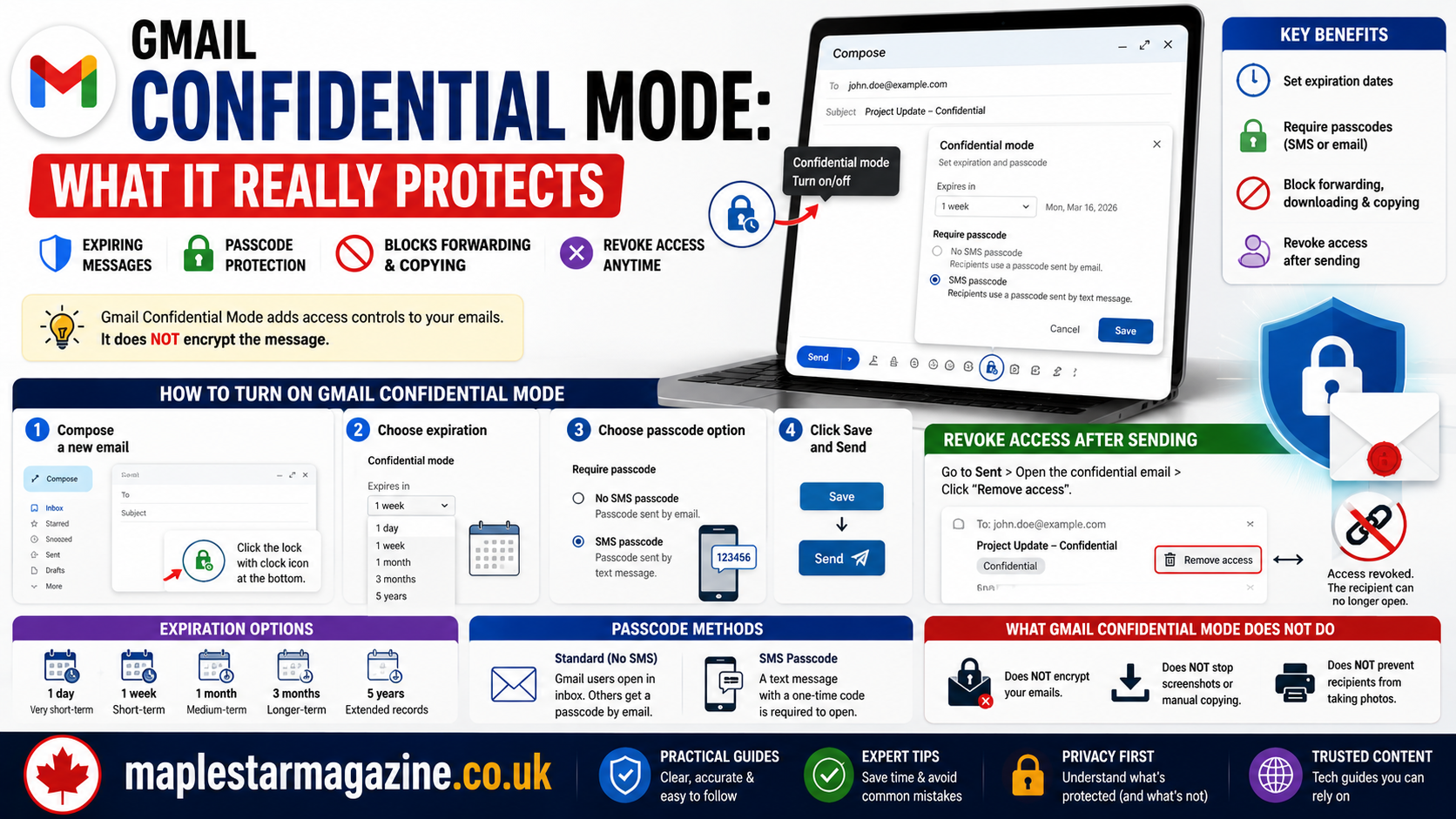
Turning on Gmail confidential mode takes only a few clicks once you know where the setting lives. Start a new message in Gmail, then look at the bottom of the compose window for a small icon that looks like a lock with a clock on it. Clicking that icon opens the Gmail confidential mode settings panel, where you choose an expiration date and a passcode option before finishing your message and hitting send.
On the Gmail mobile app, the steps are nearly identical. Tap the three-dot menu inside a new message, select Confidential mode, then set your expiration and passcode preferences before tapping Save. A banner appears at the bottom of the compose window afterward confirming that the feature is active for that specific message.
Gmail Confidential Mode Expiration Options Explained
Every message sent through Gmail confidential mode needs an expiration date, chosen from a fixed set of options rather than a custom date you pick yourself. Once that date passes, the link the recipient was using stops working entirely, even though the original message still sits in the sender’s own Sent folder. This is one of the feature’s more genuinely reassuring aspects, since it puts a hard ceiling on how long sensitive content stays reachable regardless of whether anyone remembers to clean it up manually.
Gmail confidential mode expiration options
| Option | Best for |
| 1 day | Time-sensitive information relevant only briefly |
| 1 week | Standard sensitive documents needing short-term access |
| 1 month | Ongoing projects or extended review periods |
| 3 months | Longer-term reference material |
| 5 years | Records that need long-term but eventually limited access |
There is no option to set a custom number of days, so anyone with a specific timeline in mind has to round up or down to the closest preset option Gmail confidential mode actually offers them.
Gmail Confidential Mode Passcodes: SMS vs No SMS
Beyond the expiration date, Gmail confidential mode gives you a choice about how strictly the recipient’s identity gets verified before they can open the message. Choosing the standard option lets a Gmail recipient open the message directly inside their own inbox, while a non-Gmail recipient receives a passcode by email instead, a lighter form of verification that still requires an extra click but nothing more.
Choosing the SMS passcode option instead requires you to enter the recipient’s phone number, not your own. Gmail texts them a one-time code they must enter before the confidential message will open at all. This is the stronger of the two verification options, since it ties access to a phone number rather than just an email inbox that could theoretically already be compromised. How to Choose the Right Level of Email Security for Sensitive Documents
How to Revoke Access After Sending
One of the more genuinely useful parts of Gmail confidential mode is that sending a message is not necessarily the end of your control over it. Open your Sent folder, find the confidential email in question and click Remove Access. The next time the recipient tries to open that link, they will see a notice that access has been revoked rather than the original content.
This only works as long as you have not deleted the sent email yourself, since deleting your own copy removes your ability to manage access to it going forward. It is a small but easy-to-miss detail that changes how you should think about cleaning up your own Sent folder after using this feature.
What Gmail Confidential Mode Does Not Protect Against
Here is the section most competing guides underplay. It matters more than any setup instruction in this article. According to Google’s own documentation, Gmail confidential mode does not prevent a recipient from taking a screenshot or a photo of the message with a separate device. It also does not stop someone running malicious software on their computer from copying or downloading the content through other means. The forwarding and copying restrictions apply to Gmail’s own interface, not to every possible way information can leave a screen.
It is also worth being direct about the biggest misconception: Gmail confidential mode is not encryption. The message content sits on Google’s own servers rather than being scrambled in a way that only the sender and recipient can decode, which means Google itself retains technical access to that content. For anyone in a regulated industry or an educational institution, it is also worth knowing that a message sent through Gmail confidential mode can still count as a public record subject to disclosure requirements, since restricting forwarding is not the same as making a message legally invisible.
Gmail Confidential Mode vs True Encryption
Understanding where Gmail confidential mode fits next to actual encryption clears up most of the remaining confusion about what this feature is really for. The two solve genuinely different problems. Knowing which one you actually need before you send anything sensitive saves a lot of second-guessing afterward.
Gmail confidential mode vs S/MIME encryption
| Factor | Gmail confidential mode | S/MIME encryption |
| What it does | Restricts actions, adds expiration | Scrambles content end to end |
| Setup complexity | A few clicks, no certificates needed | Requires digital certificates and setup |
| Google server access | Google can technically access content | Google cannot read encrypted content |
| Best for | Casual sensitive info, internal use | Regulated data, strict compliance needs |
| Cost | Free with any Gmail account | Often requires Google Workspace and certificate management |
Gmail confidential mode is the easier, faster option for everyday sensitive information, while S/MIME is the stronger choice when genuine end-to-end encryption is a hard requirement rather than a nice-to-have.
When You Should (and Shouldn’t) Use Gmail Confidential Mode
Gmail confidential mode makes the most sense for everyday situations where you want to reduce casual, accidental sharing rather than defend against a determined, technically capable attacker. Sending a personal document to a family member, sharing details with a colleague you trust but do not want the message forwarded around a large team or setting a reasonable expiration on something you only need shared briefly are all solid uses for this feature.
It is a poor fit for anything genuinely high-stakes, including financial account numbers, medical records subject to strict compliance rules or legal documents where a screenshot or a determined recipient with malicious intent would cause real harm. In those cases, Gmail confidential mode should be treated as a helpful extra layer at most, not a replacement for real encryption or a purpose-built secure file-sharing tool.
A useful way to think about it: ask whether the goal is preventing an honest recipient from accidentally forwarding something too widely or preventing a determined bad actor from ever seeing the content at all. Gmail confidential mode solves the first problem well. It does not meaningfully solve the second. Treating it as if it does is where the real risk in using this feature actually lies.
Gmail Confidential Mode for Non-Gmail Recipients
A common question is whether Gmail confidential mode still works when the person on the other end does not use Gmail at all. It does, though the experience looks a little different. Instead of the message appearing directly in their inbox, a non-Gmail recipient gets an email containing a link, which opens the actual content in a browser window rather than inside their own email client.
If you selected the standard passcode option, that non-Gmail recipient receives their access passcode by a separate email rather than by text message, which is worth mentioning to a less tech-savvy recipient in advance so they are not confused by an unfamiliar two-step process the first time they encounter this feature.
Compatibility across different browsers and devices tends to work smoothly, since the confidential message ultimately opens as a standard web page rather than requiring any special software. That said, a recipient on a strict corporate network with aggressive link-scanning security tools occasionally reports delays or blocked access, an edge case worth knowing about if a business contact mentions trouble opening something you sent this way.
Common Mistakes With Gmail Confidential Mode
The most common mistake is assuming this feature encrypts a message, then sending something far more sensitive than it is actually built to protect. A second mistake is deleting the sent confidential email from your own Sent folder, which removes your own ability to revoke access later if you change your mind. A third is entering your own phone number instead of the recipient’s when setting up the SMS passcode option, which sends the verification code to the wrong person entirely and locks the actual recipient out.
A fourth mistake worth flagging is assuming confidential mode automatically applies to an entire thread rather than the single message it was enabled on, which can lead someone to think a reply is protected when it was actually sent as a normal, unrestricted email. This trips up more people than the other three mistakes combined, since a long back-and-forth conversation makes it easy to lose track of exactly which individual message in the thread actually had the protection turned on.
A fifth, more subtle mistake involves attachments specifically. The expiration and access controls apply to attachments the same way they apply to the message body. Once a recipient has downloaded or viewed an attachment before expiration or revocation, nothing prevents them from having already saved a local copy elsewhere on their device before that access was cut off.
Frequently Asked Questions
Is Gmail confidential mode actually confidential?
It restricts forwarding, copying, printing and downloading within Gmail’s own interface. It can require a passcode. It does not encrypt the message and cannot stop a recipient from taking a screenshot, so “confidential” should be read as access-controlled rather than fully secure.
Can Gmail confidential mode be screenshotted?
Yes. Google’s own documentation confirms that while Gmail tries to block obvious screenshot attempts, it cannot fully prevent a recipient from photographing the screen with a separate device or otherwise capturing the content outside Gmail’s control.
Does Gmail confidential mode work for non-Gmail users?
Yes. Non-Gmail recipients receive an email with a link that opens the message in a browser, along with a passcode delivered either by a separate email or by text message depending on which option the sender chose.
Can you recall a confidential email after sending it?
Not exactly recall it. You can revoke access instead. Opening the message in your Sent folder and clicking Remove Access immediately blocks the recipient from opening that link again, though this only works if you have not deleted your own copy of the sent email.
Is Gmail confidential mode free?
Yes. Gmail confidential mode is included at no additional cost for every personal Gmail account and every Google Workspace edition, with no separate subscription or add-on required.
Does Gmail confidential mode delete the email entirely?
No. The message still exists in the sender’s Sent folder and on Google’s servers even after expiration or after access has been revoked. What changes is that the recipient’s link stops granting access to the content, not that the underlying message disappears.
Final Thoughts
Gmail confidential mode is a genuinely useful, completely free tool for reducing casual, accidental sharing of sensitive information, provided you understand exactly what it does and does not do. It restricts forwarding, sets an expiration and lets you revoke access after the fact. It is not encryption. It cannot stop a determined recipient from photographing their screen. Use Gmail confidential mode for everyday sensitive content, reach for real encryption like S/MIME when the stakes are genuinely high and share this guide with anyone on your team still assuming the lock icon means more than it actually does.

The Maple Star Magazine editorial team is responsible for the accuracy, structure, and publishing standards that every article on this site is held to. This includes verifying sources before publication, maintaining consistency across our Travel, Technology, Lifestyle and revisiting published guides as facts, pricing, or industry standards change. Content published under this byline reflects collaborative editorial work rather than a single author's individual reporting.