










Archiving an email in Gmail tucks it out of your inbox without deleting it, which is exactly why it can be so easy to lose track of where it went. Knowing how to unarchive an email in Gmail takes seconds once you know where to look, whether you archived something by accident or you are deliberately bringing an old conversation back into view. This guide covers every method, on desktop, Android and iPhone, plus two officially documented shortcuts most guides skip entirely.
Table of Contents
How to Unarchive an Email in Gmail on Desktop
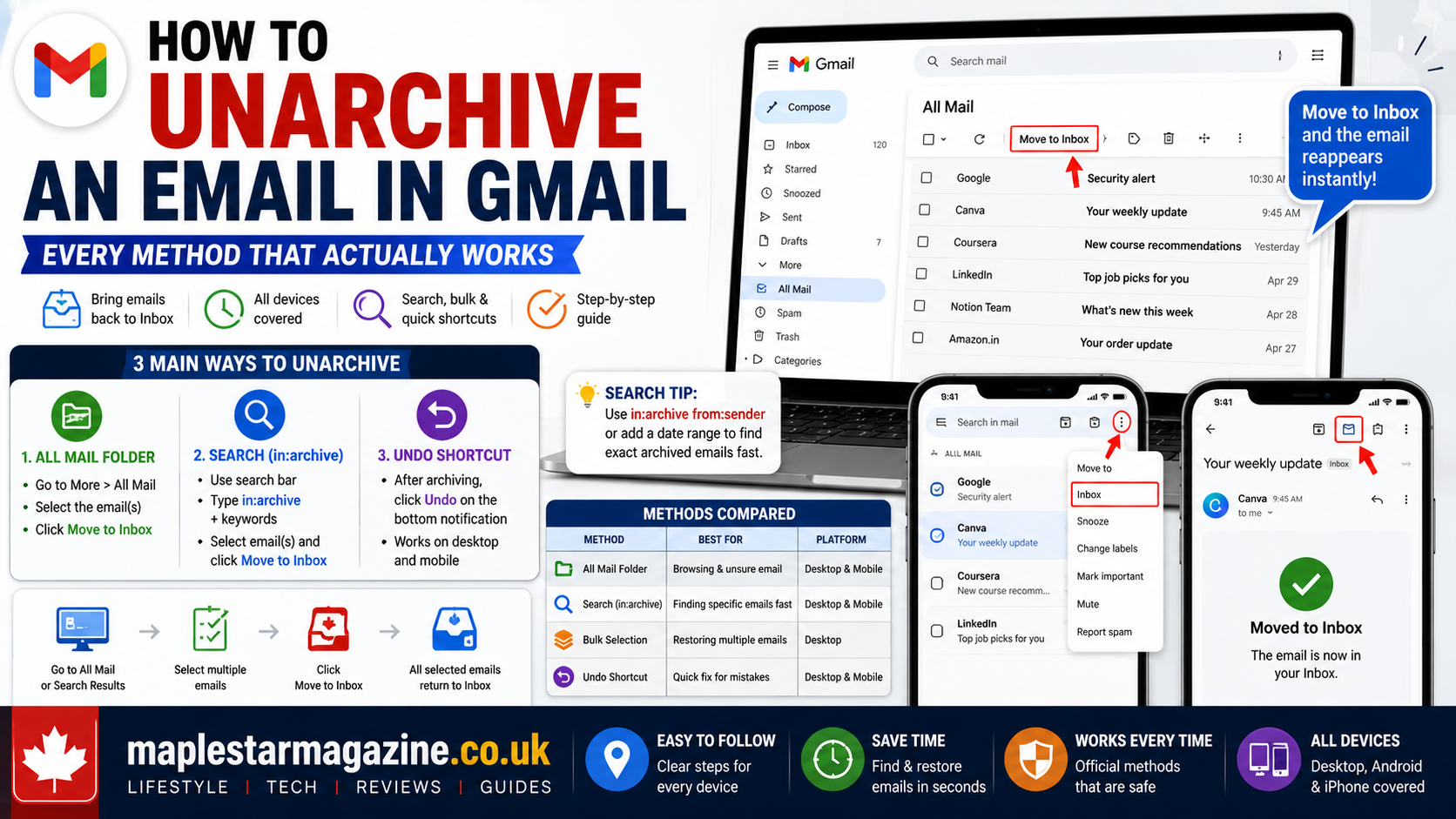
The most reliable way to unarchive an email in Gmail on a computer starts in the All Mail folder, which holds every message in your account including archived ones. Anyone searching for how to unarchive an email in Gmail on desktop should start here before trying anything more complicated. On the left side of Gmail, click More, then select All Mail. Find the message you want to bring back, check the box next to it and click Move to Inbox at the top of the screen. The email reappears in your inbox instantly, in its original position based on when it was sent or received. That is the full answer to how to unarchive an email in Gmail for a single message.
You can also open the message directly from All Mail instead of using the checkbox. Click into the email thread itself, then click Move to Inbox from the toolbar above the open message. Both approaches to unarchiving an email in Gmail work identically, so use whichever feels faster for a single message.
Some Gmail layouts also let you drag a message directly from All Mail onto the Inbox label in the left sidebar, which achieves the same result as clicking Move to Inbox without opening a menu at all. It is a small shortcut. For anyone who prefers drag-and-drop navigation, it is one more way to unarchive an email in Gmail without hunting through toolbars.
How to Unarchive an Email in Gmail Using Search
If scrolling through All Mail feels slow, searching is a faster way to unarchive an email in Gmail when you already remember a sender, subject line or keyword. For anyone specifically asking how to unarchive an email in Gmail without scrolling endlessly, this is the method to reach for first. Click the search bar at the top of Gmail and type your keyword directly, since search in Gmail automatically includes archived messages alongside everything else in your account.
For a more targeted search, typing “in:archive” followed by additional keywords narrows results specifically to archived messages, which is useful when a common search term would otherwise return dozens of inbox results mixed in. This is one of the most efficient ways to unarchive an email in Gmail when you are dealing with a large account that has years of message history. Once you find the message, check its box and click Move to Inbox exactly as you would from All Mail.
Combining “in:archive” with other search operators makes this method even more precise. Adding “from:” followed by a sender’s name narrows results to that sender’s archived messages, while a date range filters by when the message was sent. Learning these operators turns a multi-step search into one specific query, which is the fastest possible answer to how to unarchive an email in Gmail for a power user.
How to unarchive an email in Gmail, methods compared
| Method | Best for | Platform |
| All Mail folder | Browsing when you are unsure of the exact email | Desktop and mobile |
| Search bar with in:archive | Finding a specific sender or keyword fast | Desktop and mobile |
| Bulk checkbox selection | Restoring several emails at once | Desktop primarily |
| Undo notification | Fixing an accidental archive within seconds | Desktop and mobile |
How to Unarchive an Email in Gmail in Bulk
Restoring one email at a time is not always practical. There is a genuinely fast way to unarchive an email in Gmail when you need to bring back several messages together. Anyone managing a busy inbox eventually needs to know how to unarchive an email in Gmail at scale rather than one message at a time. From All Mail or a search results list, check the boxes next to every message you want to restore, then click Move to Inbox once at the top of the screen. Every selected message returns to the inbox in a single action, which saves real time compared to opening and restoring messages one by one. That is how to unarchive an email in Gmail in bulk, at its simplest.
This bulk method works especially well after a mass-archive mistake, such as accidentally archiving an entire label or a long thread of related messages, since it undoes the damage in roughly the same number of clicks it took to cause it.
How to Unarchive an Email in Gmail on Android
The steps to unarchive an email in Gmail on an Android phone or tablet follow the same underlying logic as desktop, just adapted for a touchscreen. Knowing how to unarchive an email in Gmail on Android matters just as much as the desktop method, since so much email gets handled from a phone these days. Open the Gmail app, tap the menu icon in the top left corner, then tap All Mail. Find the archived message, either by scrolling or by tapping the search bar and typing “in:archive” followed by a keyword.
Once you have found the message, tap to open it, then tap the three-dot menu in the top right corner and select Move to Inbox. To restore several messages at once, touch and hold a message to select it, tap additional messages to add them to the selection, then use the move option at the top of the screen. This bulk approach matters whenever you need how to unarchive an email in Gmail on Android for more than one message, since it saves repeating the same steps individually.
How to Unarchive an Email in Gmail on iPhone and iPad
The process to unarchive an email in Gmail on an iPhone or iPad mirrors Android closely, since both run the same Gmail app with only minor interface differences. If you have already learned how to unarchive an email in Gmail on Android, the iPhone and iPad steps will feel immediately familiar. Open the Gmail app, tap the menu icon in the top left corner, then tap All Mail to see every message in your account. Search using the same search bar and “in:archive” operator if you know what you are looking for.
Open the message you want to restore, tap the three-dot icon in the top right corner, then tap Move to Inbox. As on Android, you can select multiple messages first by tapping and holding, then apply the move action to all of them at once rather than repeating the process individually. The actual mechanics of how to unarchive an email in Gmail stay identical on iPhone and iPad, since Apple’s larger screen only changes the layout rather than the steps themselves.
The Fastest Fix: Undo Right After You Archive
Here is the detail most guides on how to unarchive an email in Gmail leave out entirely. It is the fastest option of all when it applies. Immediately after you archive a message on desktop, a brief Undo notification appears at the bottom of the screen. Clicking it within those few seconds instantly reverses the archive action, no All Mail folder or search required at all. Gmail Keyboard Shortcuts and Time-Saving Tricks Every User Should Know.
The catch is timing. That Undo notification only stays visible for a few seconds before it disappears, so it only helps when you catch the mistake immediately. Once it is gone, the All Mail and search methods above are the reliable fallback for how to unarchive an email in Gmail regardless of how much time has passed.
This same Undo pattern also appears in sending an email and deleting a message, so watching for that notification is a habit worth building generally, not just for how to unarchive an email in Gmail specifically.
The Auto-Unarchive Trick Almost Nobody Knows About
According to Google’s own Gmail Help documentation, there is a built-in behavior that quietly solves part of the how to unarchive an email in Gmail problem before you even ask the question. This single fact answers how to unarchive an email in Gmail automatically for one common scenario, without you lifting a finger. If someone replies to a message after you have archived it, that message automatically returns to your inbox on its own. You never have to manually search for it or dig through All Mail in that specific situation.
This matters more than it sounds like. Anyone managing an ongoing email thread does not need to worry about losing track of an archived conversation the moment it becomes active again, since Gmail effectively unarchives it for you the instant a new reply lands.
What Actually Happens When You Archive vs Delete an Email
Understanding the difference between archiving and deleting makes the whole concept of how to unarchive an email in Gmail make more sense. It also explains why how to unarchive an email in Gmail is even possible in the first place, since a deleted message eventually disappears for good while an archived one never does. Archiving simply removes a message from your inbox view while keeping it fully intact in All Mail, where it never expires and remains searchable indefinitely. Deleting moves a message to Trash instead, where Gmail automatically and permanently removes it after a set period.
One detail worth knowing: archived messages are not exempt from your Google account storage quota, since they still count as stored data even though they are out of sight. Archiving keeps your inbox clean. It does not reduce how much storage your account is using the way actually deleting a message would.
Common Mistakes When Trying to Unarchive an Email in Gmail
The most common mistake when people try to unarchive an email in Gmail is searching only within the inbox rather than across all of Gmail, which naturally excludes archived messages from the results entirely. This single habit change solves more how to unarchive an email in Gmail questions than any other tip in this guide. A second mistake is confusing the Archive button with the Delete button, both of which sit close together in the toolbar, leading someone to search All Mail for a message that was actually deleted and sent to Trash instead. A third is forgetting that labels and archiving are independent of each other, so a labeled email that gets archived keeps its label and can also be found by browsing that label directly, not just through All Mail.
A fourth mistake worth mentioning is assuming the process to unarchive an email in Gmail differs meaningfully between platforms, when in reality the underlying logic, find the message in All Mail or search, then move it to the inbox, stays the same everywhere. That consistency is good news for anyone who splits their time between a laptop and a phone and does not want to relearn how to unarchive an email in Gmail every time they switch devices. Once you understand that core pattern, switching between desktop, Android and iPhone becomes a matter of adjusting to a different menu layout rather than learning an entirely new process.
Unarchiving to a Label Instead of the Inbox
Not every restored message needs to land back in the main inbox. This is a lesser-known variation on how to unarchive an email in Gmail that keeps your inbox tidier than a straight restore, one worth knowing alongside the standard how to unarchive an email in Gmail steps above. Opening the message from All Mail, click the Labels icon and choose the label you want to apply. This effectively unarchives the message into an organized folder rather than dumping it back into a busy inbox, a cleaner outcome for anyone who wants how to unarchive an email in Gmail to end somewhere more organized than the main inbox.
Frequently Asked Questions
Where do archived emails go in Gmail?
Archived emails move out of your inbox but remain fully stored under the All Mail label, where they stay searchable and accessible indefinitely unless you delete them separately. Knowing this is really the first step in understanding how to unarchive an email in Gmail at all.
How do I find an archived email?
Click More on the left side of Gmail, then select All Mail to browse every message. This is the core of how to unarchive an email in Gmail no matter which platform you are using. Alternatively, use the search bar with the “in:archive” operator to narrow results to archived messages specifically.
Does archiving an email delete it?
No. Archiving only removes a message from your inbox view. The message itself stays fully intact in All Mail and continues to count toward your Google account storage. This distinction is central to how to unarchive an email in Gmail successfully, since a deleted message cannot be restored the same way.
Can I undo archiving an email?
Yes, in two ways, both central to how to unarchive an email in Gmail quickly. A brief Undo notification appears immediately after archiving on desktop. Beyond that window, you can always manually move the message back using All Mail or search.
Why did an archived email come back to my inbox on its own?
Gmail automatically returns an archived message to your inbox whenever someone replies to it, according to Google’s own documentation. This is the one case where how to unarchive an email in Gmail requires no action from you at all.
Is there a keyboard shortcut to unarchive an email in Gmail?
There is no single dedicated keyboard shortcut for how to unarchive an email in Gmail. The reliable method remains selecting the message in All Mail or search results and clicking Move to Inbox.
Final Thoughts
Learning how to unarchive an email in Gmail really comes down to two reliable paths. Browse or search All Mail and click Move to Inbox. Or catch the brief Undo notification within seconds of an accidental archive. Add the automatic return-to-inbox behavior for active reply threads. Most situations where you think you have lost an email are solved in a few clicks rather than a frustrating search. Bookmark this guide for the next time an important message goes missing. Share it with anyone on your team still unsure where their archived emails actually went.

The Maple Star Magazine editorial team is responsible for the accuracy, structure, and publishing standards that every article on this site is held to. This includes verifying sources before publication, maintaining consistency across our Travel, Technology, Lifestyle and revisiting published guides as facts, pricing, or industry standards change. Content published under this byline reflects collaborative editorial work rather than a single author's individual reporting.



One thought on “How to Unarchive an Email in Gmail (Every Method)”