

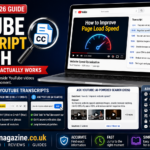


Typing a keyword into YouTube’s search bar only finds videos, not the exact moment inside one where someone actually says it. Youtube transcript search is what people actually want when a video runs 40 minutes and the one sentence they need is buried somewhere in the middle. This guide covers every real method available in 2026, from a free built-in workaround to Google’s new AI search tool, so you can pick the fastest youtube transcript search method for what you actually need.
Table of Contents
What “YouTube Transcript Search” Actually Means
Searching a YouTube transcript means finding a specific word, phrase or topic inside the spoken content of a video, then jumping straight to that moment rather than watching or scrubbing through the whole thing. YouTube has offered a transcript panel since 2018, showing a scrollable, timestamped, full-text version of everything said in a video. What it has never offered, until a 2026 update, is a dedicated search box built directly into that panel.
YouTube’s Built-In Transcript Panel: How It Works
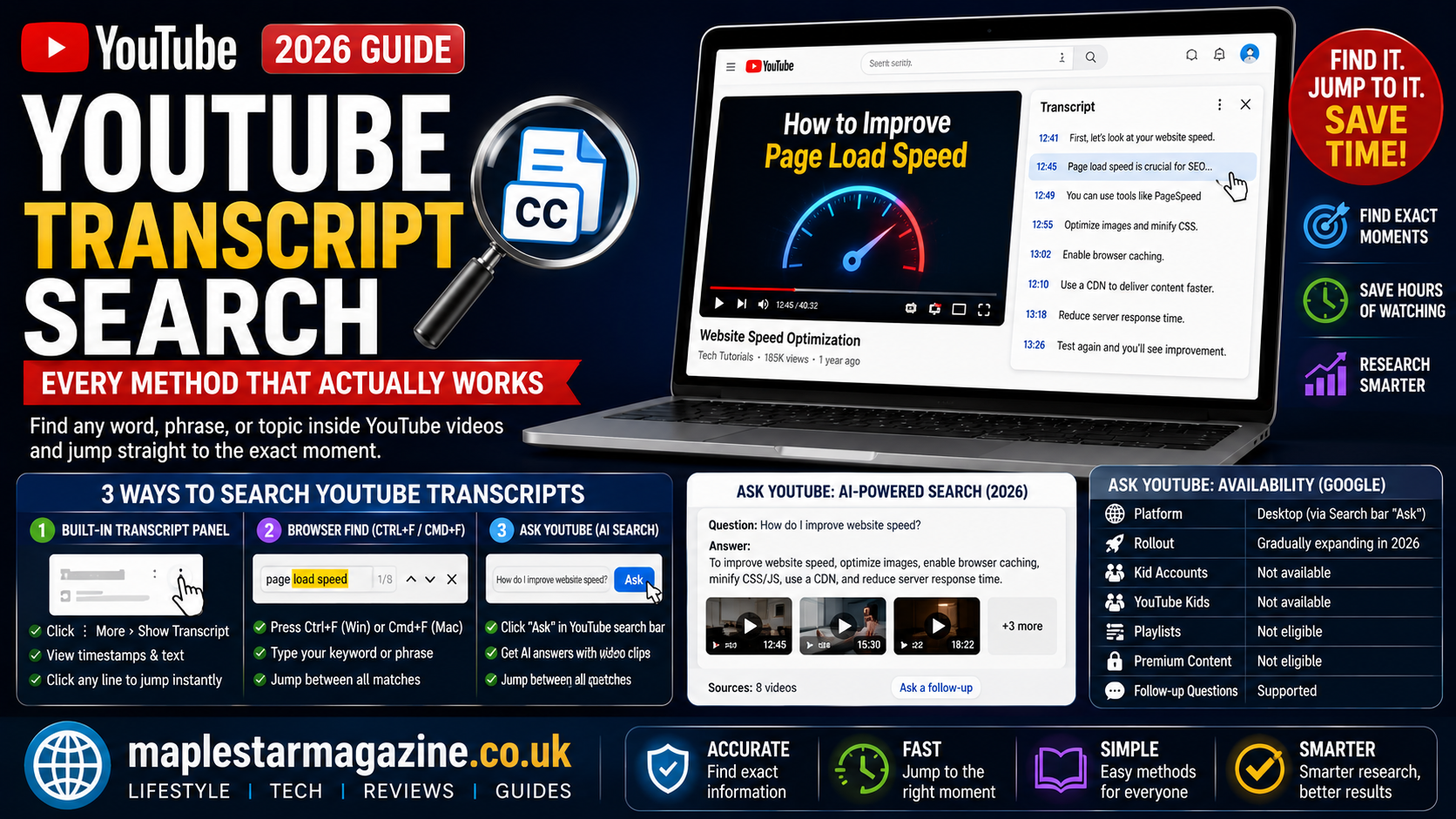
Open any video on YouTube’s website, then look below the title for a row of buttons including Like, Share, Save and a three-dot “More” menu. Click the three dots and select Show Transcript. A panel opens beside the video showing the full spoken text, broken into timestamped lines. Clicking any line jumps the video directly to that point, which makes the panel genuinely useful once you already know roughly where to look.
The transcript panel also has its own three-dot menu with a “Toggle timestamps” option, useful if you want to copy the text as a cleaner block for notes or research. Not every video has this option. Creators must have captions, either uploaded manually or auto-generated by YouTube, for a transcript to be available at all. Even where captions exist, quality varies: manually uploaded captions tend to be more accurate for names, technical terms and accents than YouTube’s automatic captions, which matters if your youtube transcript search relies on matching an exact spelling.
The Missing Piece: Why There Is No Search Box in the Panel
This is the detail that sends most people looking for a workaround in the first place. YouTube’s native transcript panel lets you scroll and read. It has no dedicated find-in-transcript search field of its own. For a short video that barely matters. For a two-hour lecture or a long interview, scrolling through unstructured text to find one phrase defeats much of the point of having a transcript at all.
The Fastest Free Method: Your Browser’s Find Function
The most reliable, completely free way to search a YouTube transcript today does not require any extension or third-party site. Open the transcript panel as described above, then use your browser’s own find-in-page shortcut, Ctrl+F on Windows and Linux or Command+F on a Mac. Type your keyword. The browser highlights every match inside the visible transcript text, letting you jump between occurrences with the Enter key or the browser’s built-in navigation arrows.
This method works in any browser and on any video with an available transcript, with one limitation worth knowing. Some browsers only search text currently rendered on the page, so on very long transcripts you may need to scroll further down first to load additional lines before a later match will show up in the search.
Ask YouTube: Google’s New AI-Powered Way to Search Inside Videos
In 2026, Google began rolling out a genuinely different approach called Ask YouTube. According to Google’s own official Help documentation, the feature lets you click Ask next to YouTube’s search bar on desktop, then type a full, conversational question rather than a simple keyword. How Ask YouTube Compares to Google’s AI Overviews. Ask YouTube returns a structured response built from actual video clips, each one deep-linked to the exact moment that addresses your question, along with the option to ask follow-up questions to refine the results further.
Ask YouTube availability and limits, per Google’s official documentation
| Detail | What Google states |
| Platform | Available on desktop through the Search bar’s Ask option |
| Rollout status | Gradually expanding to more users as of 2026 |
| Kid accounts | Not currently available for supervised kid accounts |
| YouTube Kids app | Not available |
| Playlists | Not currently eligible to appear in Ask YouTube responses |
| Premium-exclusive content | Not currently eligible to appear in Ask YouTube responses |
| Follow-up questions | Supported, to refine or narrow a response |
Unlike a plain transcript search, Ask YouTube is not limited to matching your exact words against the spoken text of one video. It ranks and pulls from across YouTube’s catalog, similar to how it ranks standard search results, which means it can answer a broader question like “how do I fix a slow drain” by pulling the most relevant clip from any eligible video rather than requiring you to already know which specific video to search.
How Ask YouTube Differs From Just Searching a Transcript
A transcript search, whether through the browser method above or a third-party tool, only works within one video you have already chosen. It also only matches the literal words spoken. Ask YouTube works more like a research assistant: you can ask a full question, get an answer assembled from multiple relevant clips across different videos and follow up conversationally if the first response misses what you needed.
That power comes with tradeoffs worth knowing before you rely on it. Because Ask YouTube surfaces short clips deep-linked to a specific moment, it is possible to miss context that appears earlier or later in the same video, a concern raised directly by tech reporters covering the feature’s rollout. For a simple task like finding the exact minute someone mentions a product name in a video you are already watching, the plain browser search method above remains faster and puts you in full control of the context around the result.
Third-Party Tools for Searching YouTube Transcripts
A growing category of dedicated tools exists specifically to extract and search YouTube transcripts, often adding features neither YouTube’s native panel nor Ask YouTube currently offers, like searching across an entire channel’s back catalog at once rather than one video at a time. Several tools pull the same caption data YouTube itself uses and present it as clean, continuous text ready to paste elsewhere, with some offering translated transcripts or bulk downloads.
Other tools go further, using AI to let you type a natural-language question about a video’s content, similar in spirit to Ask YouTube but applied to a single video or a private upload rather than YouTube’s full public catalog. Pricing models vary: some offer a free extraction with no account required, while AI question-answering tools more commonly offer a limited free tier followed by a monthly subscription for unlimited use. As with any third-party tool that processes a URL you paste in, it is worth checking a tool’s privacy policy before feeding it video links you would not want logged or stored.
A useful distinction within this category is whether a tool works on public videos only or also handles content you upload yourself, such as an internal training recording or a private client call saved as a video file. Tools built around a general video-question-answering model rather than one tied specifically to YouTube’s public catalog tend to support both, which matters for professionals who need to search meeting recordings or course materials rather than public YouTube content alone. For anyone doing this kind of search regularly across dozens or hundreds of videos, several tools also support batch processing, letting you add an entire folder or channel at once rather than searching one video at a time.
Transcript vs Subtitles vs Closed Captions
These three terms get used interchangeably. They are not quite the same thing. The distinction matters for search specifically. A transcript is the full, plain-text record of everything spoken, meant to be scrolled, searched and copied as text. Subtitles are the on-screen text shown during playback, typically meant to translate or clarify spoken dialogue. Closed captions are also on-screen text. They include additional non-dialogue cues like “[music playing]” or “[door slams]” to support viewers who cannot hear the audio. When you open YouTube’s transcript panel, you are getting the full-text version, which is the one that actually supports the kind of searching this article covers.
Which Method Should You Actually Use
For a single video you are already watching, where you just need to find one specific word or phrase, the browser find-in-page method is hard to beat: it is free, requires no sign-up and works instantly in the transcript panel you already have open. For a broader question where you are not sure which video has the answer, Ask YouTube is the better fit, provided it is available in your region and account type. For research across many videos at once, such as an entire podcast archive or a creator’s full channel, a dedicated third-party transcript search tool is likely to save the most time, since neither of the first two options is built for searching across multiple videos simultaneously.
Video length also changes which method makes the most sense. On anything under about fifteen minutes, the browser method is close to instant and rarely worth leaving the page for. On a two-hour conference talk or a multi-hour podcast, the time saved by a purpose-built search tool becomes far more significant, since scrolling and re-searching within a browser’s find function gets slower and more error-prone as the transcript grows longer. Account type matters too: if Ask YouTube is not yet available on your account or in your region, the browser method and third-party tools remain fully usable regardless of that rollout status.
Practical Use Cases for Searching YouTube Transcripts
Students use transcript search to jump directly to the exact explanation they need inside a long lecture recording rather than rewatching from the start. Researchers and journalists use it to locate and verify a specific quote inside an interview without scrubbing through the full runtime by hand. Content creators repurpose searchable transcripts into blog posts, show notes and social clips, since finding the right ten-second soundbite in a forty-minute recording is far faster as searchable text than as raw video. Job seekers preparing for interviews with a specific company sometimes use it to search that company’s own YouTube content for how leadership describes their culture or values.
Language learners represent another common use case, searching a transcript to find every instance of a specific word or grammatical structure across a video to see it used in context repeatedly. Accessibility is a further reason this matters beyond convenience: for viewers who are deaf or hard of hearing, a searchable transcript is often the only practical way to locate specific content inside a video at all, making transcript search as much an accessibility tool as a productivity shortcut.
Frequently Asked Questions
Can you search within a YouTube video?
Yes, in several ways. You can open the transcript panel and use your browser’s find-in-page function, use Google’s Ask YouTube feature where available or use a third-party transcript search tool. YouTube does not currently offer a dedicated built-in search box inside the transcript panel itself.
Does YouTube have a transcript search bar?
Not directly inside the transcript panel as of 2026. The panel shows a scrollable, timestamped transcript. Finding a specific word requires either your browser’s own find function or a separate tool built for that purpose.
How do I find a specific word in a YouTube video?
Open the video’s transcript panel from the three-dot menu below the title, then press Ctrl+F or Command+F and type the word you are looking for. Your browser will highlight matches within the visible transcript text, letting you jump straight to that point in the video.
Is Ask YouTube available for everyone?
Not yet. According to Google’s own documentation, Ask YouTube is gradually expanding to more users on desktop, is not available for supervised kid accounts or the YouTube Kids app and does not currently include playlists or Premium-exclusive content in its responses.
Do YouTube transcripts work on all videos?
No. A transcript is only available when a video has captions, whether uploaded manually by the creator or generated automatically by YouTube. Some creators disable captions entirely, in which case no transcript panel will appear.
Are third-party YouTube transcript tools safe?
Most reputable tools simply pull the same public caption data YouTube already provides. Privacy practices vary by provider. Check a tool’s privacy policy before pasting in links to private or unlisted videos. Be cautious of any tool that asks for account access it does not clearly need.
Final Thoughts
YouTube transcript search has genuinely improved in 2026, not because the transcript panel itself changed. It improved because a free browser shortcut most people never think to try sits right alongside a powerful new official tool in Ask YouTube. Use the browser method for quick, single-video lookups, reach for Ask YouTube when you are not sure which video has your answer and turn to a dedicated third-party tool when you need to search across an entire channel at once. Try the Ctrl+F method on the next long video you watch. Share this guide with anyone still scrubbing through hour-long videos by hand.

The Maple Star Magazine editorial team is responsible for the accuracy, structure, and publishing standards that every article on this site is held to. This includes verifying sources before publication, maintaining consistency across our Travel, Technology, Lifestyle and revisiting published guides as facts, pricing, or industry standards change. Content published under this byline reflects collaborative editorial work rather than a single author's individual reporting.