










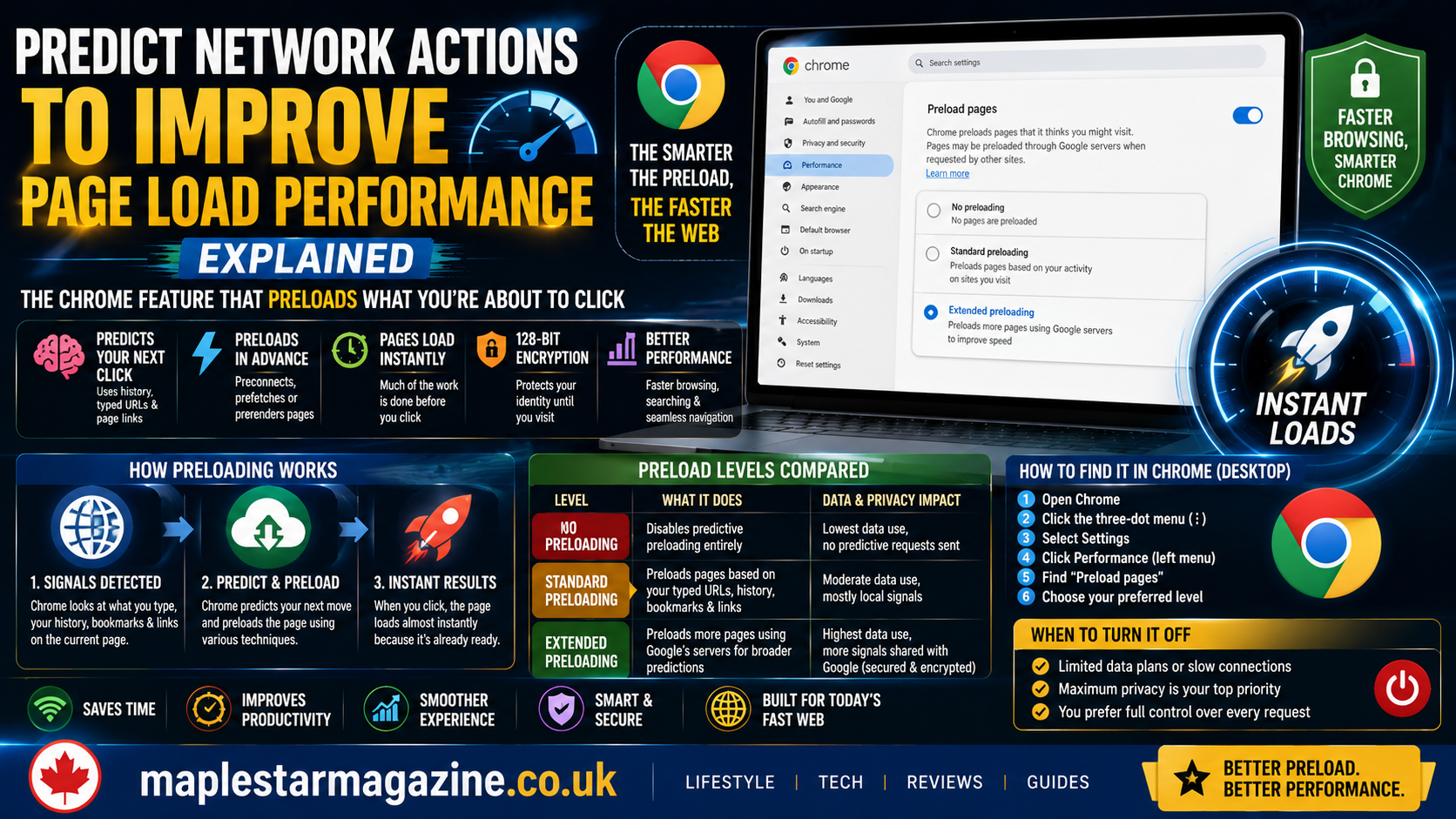
If you searched the exact phrase “predict network actions to improve page load performance,” you likely found it somewhere unexpected: an old forum thread, a Chromium bug report or a line buried in your company’s IT policy documentation. That phrase is the original name of a Chrome feature that quietly preloads pages it thinks you are about to visit. The setting has since been renamed and redesigned. The underlying feature is more relevant than ever, given how much modern web browsing depends on split-second loading times. Here is what it actually does, where to find it today and when you should turn it off.
Table of Contents
What This Setting Actually Is
“Predict network actions to improve page load performance” was the original label for a network prediction feature built into Google Chrome since its earliest versions. The feature watches for signals, what you type into the address bar, links present on the page you are currently viewing and your browsing history, then preloads pages Chrome predicts you are likely to visit next. When you eventually click, the page appears to load instantly because much of the work already happened in the background.
Chrome has renamed this feature more than once over the years. It became “Use a prediction service to load pages more quickly” in some versions, then “Preload pages for faster browsing and searching,” and today it lives under a simplified three-tier system called “Preload pages.” The underlying idea, predicting your next click and preparing for it in advance, has stayed the same the entire time. That consistency is exactly why the old exact phrase still surfaces in decade-old bug reports and enterprise documentation even though no current Chrome menu displays it anymore.
Why the Old Name Still Shows Up in Search Results
The phrase persists online for a simple reason: it was Chrome’s setting name for years, long enough that support forums, IT knowledge bases and Chromium’s own public bug tracker all reference it verbatim. A Chromium bug from 2014 documenting the feature’s conflict with corporate proxies still uses this exact wording, as does enterprise browser-management documentation written specifically to help IT teams disable the feature across managed machines. If you found this phrase in a company policy document rather than in Chrome itself, that document was likely written years ago and never updated to match the current setting name.
How Predictive Preloading Actually Works
Chrome’s current preloading system uses a mix of local and cloud-assisted signals depending on which level you select. At the most basic level, Chrome preconnects to a likely destination, meaning it resolves the domain name and opens a network connection ahead of time, without downloading the full page. At a deeper level, Chrome prefetches or even prerenders the actual page content in the background, so the moment you click, the browser has little or nothing left to fetch.
Each of these three techniques trades a different amount of work for a different amount of speed. DNS prefetching alone is nearly free, resolving a domain name takes almost no bandwidth. It only shaves off a small part of the total load time. Preconnecting goes a step further by also opening the network connection itself, saving the handshake time that would otherwise happen the moment you click. Prefetching or prerendering the full page is the most resource-intensive option and the one that makes a click feel genuinely instant, since the destination page is effectively already loaded and waiting before you ask for it.
How the current preload levels differ
| Level | What it does | Data and privacy impact |
| No preloading | Disables predictive preloading entirely | Lowest data use, no predictive requests sent |
| Standard preloading | Preloads pages based on your typed URLs, browsing history, bookmarks and links on the current page | Moderate data use, mostly local signals |
| Extended preloading | Preloads a wider range of predicted pages using Google’s servers to help make broader predictions | Highest data use, more browsing signals shared with Google |
According to Google’s own Chrome Help documentation, preloading may use cookies if you allow them. Chrome may also encrypt and route preloaded pages through Google’s servers specifically to hide your identity from the destination site until you actually visit it. That detail matters: the privacy tradeoff is not simply “Google sees more,” it also includes a protective mechanism that shields the destination website from seeing who requested the preload before a real click happens. How Browser Prefetching and Preconnect Actually Work Under the Hood
Where to Find This Setting in Chrome Today
On desktop, open Chrome, click the three-dot menu in the top right corner, select Settings, then choose Performance from the left-hand menu. Scroll to the Speed section and find Preload Pages, where you can toggle it on or off and choose between Standard and Extended preloading.
On Android, open the Chrome app, tap the three-dot menu, select Settings, then tap Privacy and Security, followed by Preload Pages. The same three options, No preloading, Standard preloading and Extended preloading, appear there as well. If the toggle appears greyed out and cannot be changed, that usually means an organization-managed policy, often set by a workplace or school, is controlling the setting rather than a bug in Chrome itself.
Should You Turn It On or Off
For most people on an unmetered home connection, Standard preloading is a reasonable default. It delivers a real, noticeable speed improvement on pages you are likely to click through to next, while relying mostly on local signals rather than sending extensive browsing activity to Google’s servers. Extended preloading goes further and feels faster still. It does so by sharing a broader set of browsing predictions with Google, a tradeoff worth understanding rather than accepting by default.
A few situations call for turning preloading down or off entirely. On a limited or metered mobile data plan, predictive preloading burns data on pages you may never actually visit, so No preloading or Standard at most makes more sense. On a shared, older or battery-constrained laptop, the background network activity adds a small but real drain. If you are specifically privacy-conscious, Standard preloading keeps most prediction local, while Extended preloading is the tier privacy-focused outlets and security researchers most commonly recommend disabling first.
There is no single correct answer here, only a tradeoff worth making deliberately rather than by default. A fast, unmetered home connection with no particular privacy concerns is the clearest case for leaving Standard preloading on. It is also a reasonable setup for trying Extended for a week to see whether the extra speed feels worthwhile. A work laptop on a corporate network, a phone on a limited data plan or any situation where predictable, traceable network requests matter more than shaving a few hundred milliseconds off page loads all point toward dialing preloading back rather than maximizing it.
Why This Setting Sometimes Breaks Corporate Tools
Here is the detail almost no consumer guide covers. It is also the reason this exact old phrase still circulates in IT documentation. Because Chrome’s preloading feature silently generates network requests without an actual user click, it can confuse security and content-filtering tools that assume every navigation request reflects genuine user intent. Enterprise browser-management platforms have documented this directly: preloading can trigger what one vendor’s support documentation calls “phantom” navigation requests, page loads that appear in logs and filtering systems as if a user visited a site, when in fact Chrome only preloaded it speculatively in the background.
This is not a new or theoretical problem. A Chromium bug report dating back over a decade documented predictive preloading interfering with corporate proxy servers specifically, causing pages to load unpredictably or fail when a proxy could not distinguish a genuine click from a speculative preload. That bug report used the exact original phrase, “predict network actions to improve page load performance,” in its title, which is one of the reasons that specific wording still ranks in search results today despite Chrome renaming the feature since. IT professionals troubleshooting similar symptoms today, unexplained page loads in proxy logs, filtering rules triggering on sites nobody intentionally visited, often trace the cause back to this exact feature once they know what to look for.
Managing This Setting Across a Business’s Computers
IT administrators managing Chrome across multiple machines do not need to rely on end users to change this setting one browser at a time. Chrome Enterprise supports a policy called NetworkPredictionOptions, which can be deployed through Group Policy on Windows or through a mobile device management platform, letting administrators disable predictive preloading organization-wide and prevent individual users from re-enabling it. This is exactly the kind of control referenced in older enterprise documentation that still uses the legacy “predict network actions” phrasing, since that documentation predates the current Performance settings tab entirely.
For a business primarily concerned about proxy conflicts or content-filtering accuracy rather than data usage, disabling preloading organization-wide through policy is a more reliable fix than asking every employee to change a personal Chrome setting, since individual settings can be reset by a Chrome update, a browser reinstall or a fresh profile.
Common Questions About Predictive Preloading
Most confusion around this setting comes down to a handful of recurring questions. Chrome’s own current interface does not always make the answers obvious at a glance. Understanding the difference between a preconnect and a full prefetch, for instance, explains why some pages feel instant while others still show a brief loading delay even with the highest preloading tier enabled. A preconnect only opens the network connection in advance; it still has to download the actual page content once you click, while a full prefetch or prerender does that work ahead of time too, which is the difference between a page that loads noticeably fast and one that appears the instant you click.
Another common point of confusion is why preloading sometimes seems to make no noticeable difference at all. Preloading only helps when Chrome correctly predicts your next click. Prediction accuracy varies significantly by site. A news homepage with a handful of prominent headline links is an easy target for accurate prediction, while a search results page or a site with dozens of similarly weighted links gives Chrome far less to work with. On sites where prediction is weak, even Extended preloading may produce little to no perceptible speed improvement, since the feature can only preload pages it has reasonable confidence you will actually visit.
It is also worth knowing that preloading is not unique to Chrome. Other Chromium-based browsers, including Microsoft Edge and Opera, ship comparable prediction features under their own settings menus and naming conventions. Firefox offers its own more limited version through link prefetching controls. The specific wording and settings location vary by browser. The underlying tradeoff between speed and shared browsing signals is effectively the same everywhere predictive preloading exists.
Frequently Asked Questions
Should I turn on predict network actions to improve page load performance?
For most users on an unmetered home connection, yes, at least at the Standard preloading level. It provides a real speed benefit for pages you are likely to visit next while relying mostly on local browsing signals rather than extensive data sent to Google.
Does preloading pages use more data?
Yes. Standard preloading uses a moderate amount of extra data since it preloads a limited set of likely pages, while Extended preloading uses more since it predicts across a wider range of destinations using Google’s servers. On a metered connection, No preloading or Standard is the safer choice.
Is Chrome’s preload pages setting safe?
It is generally safe for most users. Google’s documentation states that preloaded pages may be encrypted and routed through Google’s servers specifically to hide your identity from the destination site, though Extended preloading does share more browsing signals with Google than Standard preloading does.
Why is preload pages greyed out in my Chrome settings?
This almost always means an organization-managed Chrome policy, commonly deployed by a workplace, school or IT department, is controlling the setting. Contact your IT administrator rather than looking for a workaround, since the setting is intentionally locked at the policy level.
What is the difference between standard and extended preloading?
Standard preloading uses local signals like your browsing history, bookmarks, typed URLs and links on the current page. Extended preloading widens that prediction using Google’s servers to guess likely pages across a broader range of sites, at the cost of sharing more browsing activity with Google.
Does turning off preloading save battery?
Yes, modestly. Disabling predictive preloading reduces background network activity, which has a small but measurable effect on battery life, particularly noticeable on laptops and phones already running low on charge.
Final Thoughts
“Predict network actions to improve page load performance” is a decade-old Chrome setting name that has since evolved into today’s three-tier Preload Pages system. The underlying feature works the same way it always has: predicting where you will click next and getting there first. Standard preloading is a sensible default for most people. Extended preloading trades more privacy for more speed. IT teams managing proxy or filtering tools have good reason to control it centrally rather than leaving it to individual settings. Check your own Chrome Performance settings today. Share this with anyone still confused by that old, oddly specific phrase.

The Maple Star Magazine editorial team is responsible for the accuracy, structure, and publishing standards that every article on this site is held to. This includes verifying sources before publication, maintaining consistency across our Travel, Technology, Lifestyle and revisiting published guides as facts, pricing, or industry standards change. Content published under this byline reflects collaborative editorial work rather than a single author's individual reporting.